Start Date - End Date OF Previous (Day, Week, Month and Year)

Here you can find out how to search the start date and end date of the different period in python.

The required modules of python to work with datetime are as below :

import datetime
form datetime import timedelta, date
import time 
from pytz import timezone
import pytz


Fetching Dates:

#Day:

st_date = datetime.datetime.now(pytz.timezone(str(tz))).date() - datetime.timedelta(days=1)
ed_date = datetime.datetime.now(pytz.timezone(str(tz))).date() - datetime.timedelta(days=1)

#week

year_pre_week_detail = str(datetime.datetime.now(pytz.timezone(str(tz))).date().strftime("%Y")) + '-                          W' + str(int(datetime.datetime.now(pytz.timezone(str(tz))).date().strftime("%W")) - 2)

st_date = datetime.datetime.strptime(year_pre_week_detail + '-0', "%Y-W%W-%w").strftime('%Y-%m-%d')

ed_date = (datetime.datetime.strptime(str(st_date), "%Y-%m-%d") +  
                  datetime.timedelta(days=6)).strftime('%Y-%m-%d')

#Month 

ed_date = date.today().replace(day=1) - timedelta(days=1)
st_date = ed_date.replace(day=1)
         
#Year
 
st_date = date(date.today().year, 1, 1)
ed_date = date(date.today().year, 12, 31)

Python Date and Time

This is what we can do with the datetime and time modules 

in Python.


# import modules for the time and datetime

import time
import datetime


# working with the date and time 

print "Time in seconds since the epoch: %s" %time.time()
print "Current date and time: " , datetime.datetime.now()
print "Or like this: " ,datetime.datetime.now().strftime("%y-%m-%d-%H-%M")
print "Current year: ", datetime.date.today().strftime("%Y")
print "Month of year: ", datetime.date.today().strftime("%B")
print "Week number of the year: ", datetime.date.today().strftime("%W")
print "Weekday of the week: ", datetime.date.today().strftime("%w")
print "Day of year: ", datetime.date.today().strftime("%j")
print "Day of the month : ", datetime.date.today().strftime("%d")
print "Day of week: ", datetime.date.today().strftime("%A")


# That will print out something like this:

Time in seconds since the epoch: 1349271346.46
Current date and time: 2012-10-03 15:35:46.461491
Or like this: 12-10-03-15-35
Current year: 2012
Month of year: October
Week number of the year: 40
Weekday of the week: 3
Day of year: 277
Day of the month : 03
Day of week: Wednesday

Net Neutrality : Internet Freedom

The issue of net neutrality is one of the most talked about issues in India at present.
Should you be worried? Most certainly, because it takes away your freedom of communicating freely and promotes inequality by granting total control to Internet Service Providers (ISPs) on which sites and apps get priority. Above all, it is important to know the whole concept of net neutrality before jumping into the fight against those violating the rights of so-called netizens.


What is Net Neutrality?


Net Neutrality is the Internet’s guiding principle: It preserves our right to communicate freely online. This is the definition of an open Internet.
Net neutrality is the means for every internet user to freely access any content or application without restrictions. Once you pay for the data through your respective ISP, you have the freedom to access anything on the internet and at the same speed. This means, you are allowed to decide on how to spend your allotted data, whether by watching a YouTube video, sharing WhatsApp messages or even connecting with friends on social networking sites like Facebook and Twitter.  Internet service providers should provide us with open networks — and should not block or discriminate against any applications or content that ride over those networks. Just as your phone company shouldn't decide who you can call and what you say on that call, your ISP shouldn't be concerned with the content you view or post online.
It’s important for access to knowledge, services and free speech, as well as freedom and ease of doing business online, for this access to be neutral:
– All sites must be equally accessible
- The same access speed at the telco/ISP level for each (independent of telco selection)– The same data cost for access to each site (per KB/MB).


What will happen if there is no net neutrality?


If there is no net neutrality, ISPs will have the power (and inclination) to shape internet traffic so that they can derive extra benefit from it.
Assuming TRAI (Telecom Regulatory Authority of India) succeeds in its attempt to diminish net neutrality, you will be forced to abide by the rules set by your ISP. For instance, you pay ₹249 for 1GB of 3G data on Any Network for a period of 30 days; net neutrality gives you the freedom to use your data any way you want, but if there is no net neutrality, Your network will control your bandwidth treating all websites and apps with different speed. To give you a better perspective, your ISP can charge you extra for WhatsApp, Skype and other VoIP apps and other sites and apps. This tactic will be applied for websites and apps as well.
Without net neutrality, the internet as we know it will not exist. Instead of free access, there could be "package plans" for consumers. For example, if you pay Rs 500, you will only be able to access websites based in India. To access international websites, you may have to pay a more. Or maybe there can be different connection speed for different type of content, depending on how much you are paying for the service and what "add-on package" you have bought.
Should you join the fight?
Definitely, because TRAI's deadline for submissions of any complaints against its "Regulatory Framework for Over-the-top (OTT) services" or simply put end of net neutrality ends on 24 April. If TRAI doesn't receive enough complaints, it will pass the plan and India will see the first sign of Dark Age.
What you do to help?
If you are a frequent internet user or you use internet from time to time, if u wish that this is not acceptable then vote

Sample of java program


Sample of java program to print " Hello Java" on screen with short

 description to easy understand the java program.


Sample Program


public class Hello
{
public static void main ( String args[] )
{
System.out.println("Hello Java");
}
}


     class name and file name are same.

     public is a access specifier this define the scope of the method or class.

     static means that method is associated with the class, not a specific instance(object)
     of  that class.

    void specify the return type of the method.

    array args[] is a String array use to get value from command line argument.

    In System.out.println()
            - System is a in-built class which is present in "java.lang" package.
    - out is a static final field (ie, variable) in System class which is of the type
               PrintStream ( a built-in class, contains methods to print the different data values ).
    - println() is a method use to print any message in nee line. we also use print()
               method is to print message is current line.

    how to compile ?
    javac programName.java;
    ex:-  javac Hello.java;

    how to Run ?
            java MainClassName;
    MainClassName means class which contain main method.
    ex:- java Hello

    O/P :-


Basic Commands for Unix

 Hello friends, Here I am going to explain you all the basic command for the Unix. So you can handle system or access the data through the terminal.

       Commands :


>>Basic Commands


1)  cal : 

The cal command is used to to display the calender.
For example to check calendar you need to type cal command as follows:


2) passwd

The passwd command is used to change the password of the unix system. Every unix system will require a password for the security.


3) whoami, who, user

The who am i  command is used to know the name of the user by which you are currently logged in.
The who command is used to know the name of the user who are online on connected system.
The user will display the name of the users.


                                >> File Management Commands<<

4) ls command

The ls command is used to list the directories and files of the current running directory with the 
-l option.
As shown below example d stands for the directory and - is for the executable file like text file, image or any other format.


5) cat

The cat command is used to read the file. We can also create the file with the cat command by using >  sign with it. as seen below example :


6) wc (word count) command

The wc command is used to count the number of characters, words and lines of any file.
In wc  command -c for character, -w for word count and -l for line count

Syntax  $wc <filename>


7) cp command

To make a copy of a file use the cp command. The basic syntax of the command is:

Syntax :
                  $ cp source_file destination_file


8) mv Command 

The mv command is used to rename the filename

Syntax :
                 $ mv old_file new_file


9) rm Command 

The rm command is used to remove the particular file.
It is recommended to use -i option along with rm command.

Syntax :
               rm <filename>


Step to set the the path of JDK (Java Development Kit)

Step 1.  Download JDK ( Depend on your windows version compatibility ).

Step 2.  Install JDK.

Step 3.  Set the System variable path (eg. Win8).

          Open MyComputer properties.


  Click on "Advance System setting".


Click on "Environment variable..".


Drop-down list of "System variable" select the variable "Path".  
          Click on edit button.

 
Set the cursor on last position in variable value.
          Then write semicolon(;) then write the path of bin folder of JDK.


Basic of Java

Introduction

        Java is an object oriented programming language and a platform developed by the  James GoslingMike Sheridan, and Patrick Naughton initiated the Java language project. The small team of sun engineers called Green Team. in June 1991.
It is a fully platform independent language  

Platform Independent  Any hardware or software environment in which a program runs, known as a platform. Since Java has its own Runtime Environment (JRE) and API, it is called platform
                    Thus the system which have a support to the java platform can run the java program their is no any changes is required in the program. Their is only the java class files are used which are a intermediate code generated by the compiler.
                      In java the Intermediate code is generated by the Compiler are used by the Java Virtual Machine (JVM)  and it  converts its into the machine code to execute the program.

Kernal : The Heart of OS


             The KERNAL was initially written for the Commodore PET by John Feagans, who introduced the idea of separating the BASIC routines from the operating system. It was further developed by several people, notably Robert Russell added many of the features for the VIC-20 and the C64.
             In computing Kernal is the main component of most operating system. The kernal also known as the heart of an OS.It is working as a bridge between the application and the actual data processing done at the hardware level.
            As a collection of programs written in 'C language'  that directly interact with hardware and most of manages the task like memory management , task scheduling, process management, Device management and file management, etc ....but the kernal is a program that constitutes the central core of the computer OS.It has complete control over everything that occurs in the system.
           When the system starts, the kernal is being first loaded into the memory during the boot time and it should be remains their for the entire duration of the computer session, because the services of the kernal requires continuously. The kernal is the part of OS which is responsible for all other operations.
           Unix kernal is directly above the hardware kernal manages all hardware  devices and controls programs run on the computer it is loaded into the memory when system is booted.

How Kernal works?


          When a computer boots up, it goes through some initialization functions (Like Memory checking). Then it loads the kernal and switch the control to it. Then the kernal starts up  all the required processes needed to communicate with the user and the rest of the environment (e.g. LAN).
          The kernal itself does not interact  directly with the user but rather interacts with the shell and other programs as well as with the hardware device on the system including the CPU, Memory and Disk drive.
A kernal can be contrasted with a, which is the program that interacts with user commands.
       

Way to keep secure E-mail


E-mail is the most widely used forms of communication today. E-Mail is a method of exchanging the digital information from one end to another end. We know that E-Mails are very popular in our daily routine. In the past, when we don’t have an Internet, What we do for the communication? Yeah, Off Course letters being sent from one place to another place or one person to another person, but the letters aren’t secure, but how?

Suppose someone sent you a letter which contains your confidential information and there may be a chance that it may be lost or theft by someone. So these aren’t secure way to transfer the confidential information. Later when we enter into the world of internet then E-Mails are used to exchange messages but with the advancement of internet there is a risk of theft your E-Mail or Hack your E-Mail.

So, To Prevent from E-mail Hijacking we must keep our E-Mails Safe. In this article we are going to read How can we keep our E-Mail Safe ?

There are total 5 ways from which you can keep your E-Mails Safe and minimizing the mishappening with your mail list. 

Go Off Records

If you really want to keep your E-Mails secret then just activate the Go Off Record button from your G-Mail chat box. If you are using Gmail then you can also activate this feature from the GTalk or other IM Chat Messenger. After activating this features whatever you typed-in from the keyboard will not save in your E-Mail Account.

Stop using Draft

If you are using the draft service to save your message or private information so you should stop it from now. Because it can be read by anyone, but how? Let’s discuss with an example

Suppose you have an urgent piece of work on the internet and your internet is not working, what will you do? Off course you have to go to the cyber cafe, and in the cafe you open your E-Mail account and by mistake you didn’t log-out your E-Mail account, now anyone who sits on your seat can open your E-Mail account, check your draft folder and theft your confidential information.

Use 2-Step Verification

This is the best way to keep your E-Mail Safe. If you are using G-Mail then there is a best option for you to activate 2-step Verification in your G-Mail account. After activating this option no one can log-in into your G-Mail account even though he/she knows your password.

Use password protected zip files

If you are sending some private or confidential information to anyone then always use password protected zip files. This will keep your E-Mail message safe. By chance if anyone theft your file which is password protected then he/she cannot open that file. So this is how, you can safe your E-Mails safe.

Hide your files in image

There is an another cool way to keep your E-mail safe i.e. hide your files with images then send it to the recipient. But how is this possible? Yeah, it is possible let’s see,

To hide files in image you have to go through some steps so get ready-

Gather all files (which you want to hide) in a specific folder I recommend C:\private

Then compress all files to .rar extension and named it like hello.rar and this hello.rar should also be in the same directory i.e. private.

Now pick any .jpeg file (for ex- abc.jpeg) from your computer and put that image file into that directory.

Open command prompt (click on start-> Run-> cmd) and go to the present working directory that is C:\private

Then type a simple command

copy /b abc.jpeg + hello.rar output.jpeg

now your hello.rar folder is hidden in the output.jpeg and if you click on the output.jpeg file then an image will be open. This is the best way to keep your E-Mail safe, if your E-Mail is hijacked even then no one can theft your confidential information.

Watch YouTube videos on slow connection.


Friends when I was  bought a slow internet connection for the first time. I was new to the internet and when i used to watch videos on YouTube, I used to get irritated as it took more time to buffer than the actual time period of video.

I think this is the most common problem that every slow internet users all are facing. Am I right?

That is why I want to make this problem’s solution public, so that other people can also get benefited from it.


So here we go, just follow the procedure to watch the YouTube videos on a  slow Internet connection..

YouTube is a video-sharing website with millions of videos available on its servers. 

Registered and unregistered users can watch videos on YouTube and most of its videos were uploaded by individuals like us.

Even i love watching videos on YouTube but the greatest challenge I used to face is slow buffering and this usually happens because internet was slow, but just a few days ago I found out a solution to watch YouTube videos with my slow internet connection.

YouTube videos buffering can be speed up using “YouTube feather beta”. This helps to load YouTube video faster in a slow internet connection because it removes the entire information panel.  

Not only that, but also the sidebar related videos list, share button, comment, like and dislike button etc. From all YouTube video pages once it is activated.

To activate YouTube feather beta go to this link www.youtube.com/feather_beta and then click “Join Feather Beta” link to enable YouTube Feather beta on your account.

Yes this is it. You can now happily watch videos without having to wait.

Cloud Computing


                 What is Cloud computing?

Cloud computing is the use of computing resources like hardware and software which are available on the remote location and accessible over a network.
In cloud computing, the word cloud is used for "the internet" and computing  means " a type of internet-based computing".
Here  in cloud computing there is no any local servers or hardware to handle the application.


It should be runs through Interface software.All heavy lifting done by the web based services and the third party services holds all information like :
                             - Software       - Saved data       - Security                                                                              
                                                                       The cloud computing is used in online email services, storing online data.Cloud computing networks are large groups of servers and cloud service providers that usually take advantage of low-cost computing technology, with specialized connections to spread data-processing chores across them.  Virtualization techniques are often used to maximize the power of cloud computing.


Their are different types of cloud are their as below....


1) Public Cloud   : A public cloud can be accessed by any subscriber with an internet connection and access to the cloud space.

2) Private Cloud : A private cloud is established for a specific group or organization and limits access to just that group.

3)Community Cloud : A community cloud is stored among two or more organizations that have similar cloud requirements.

4) Hybrid Cloud : It is essentially a combination of at least two clouds, where the cloud included are mixture of public , private and community.


Some of the advantages of the cloud computing

- Unlimited, everywhere access
- Reduction in hardware and software cost.
- No physical space in office or home.
- Increase the computing process.
- Automatic redundancy.

Some of the disadvantages of the cloud computing

-  Change is hard.
-  Security & privacy
     -- User don't physically have data.
     -- Storage cloud be hacked.
-  Services Live and Die by their security reputation.
- Significally harder to infiltrate these system.


Protect USB Drive with password without 3rd Party Tool


 Today I'm gonna talk about USB Drives.
I'll show you a simple trick to lock your USB drive without using any 3rd party software.
Most of the people doesn't like other people checking their personal files and folder on USB, including me. This insecure situation creates a huge space to theft our personal data by someone. If you use password protection to your USB, you can reduce the data theft.

Lots of USB password protect software available in present market, but you want to pay money to use it for lifetime. If you're using Windows you don't need any software.


So let's see how to set a password protect on your USB without using any software I am showing this tutorial with window 7....
Insert your USB drive to computerOpen My Computer..... Then left click on USB drive.


Now click on Turn on BitLocker...
It opens one window, in that it asks for that password... 
Enter the strong password


        Now, after entering the password click on next button

Now Store your recovery key to somewhere on your harddrive
or take printout of the key


After storing the key click on the next....

It's open another window.... Now click on
Start Encryption


When you click on Start Encryption

It starts Encrypting your Drive.


That's all !!! :)
From right now if someone tries to access your USB, Windows will ask him/her to enter the current password.


Note : If you not find the option then jst follow bellow steps

Goto > Start menu 

In search just type BitLocker....

Then click Turn On BitLocker  for USb Drive.. Then follow above steps.


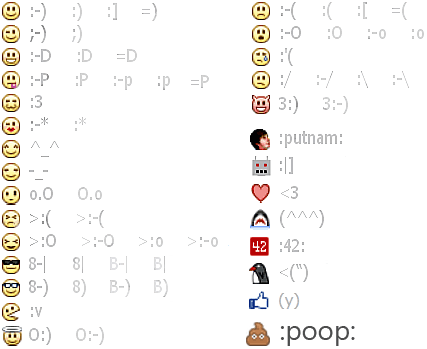
Best Smiley Collection for Facebook Chat


  Now a days, we should chat on Facebook lots,
 If we think chat without smiles than how boring 
so here i have some basic and some extra smiles 
to make your chat interesting... so for what are you waiting 
just open your chat box any try it.......i know you like it 


Classical Smiles


classical Facebook emoticons

New chat smiles.... 


Just copy past and see the migic....   ;)

[[f9.laugh]]
[[f9.sad]]

[[f9.angry]]

[[f9.sleepy]]

[[f9.shock]]

[[f9.kiss]]

[[f9.inlove]]

[[f9.pizza]]

[[f9.coffee]]

[[f9.rain]]

[[f9.bomb]]

[[f9.sun]]

[[f9.heart]]

[[f9.heartbreak]]

[[f9.doctor]]

[[f9.ghost]]

[[f9.brb]]

[[f9.wine]]

[[f9.gift]]

[[f9.adore]]

[[f9.angel]]

[[f9.baloons]]

[[f9.bowl]]

[[f9.cake]]

[[f9.callme]]

[[f9.clap]]

[[f9.confused]]

[[f9.curllip]]

[[f9.devilface]]

[[f9.lying]]

[[f9.rofl]]

[[f9.billiard]]

[[f9.cakepiece]]

[[f9.rosedown]]

[[f9.shutmouth]]

[[f9.shy]]

[[f9.silly]]

[[f9.tongue1]]

[[f9.fastfood]]

[[f9.ring]]


Please post your comments .....
And help us to improving our blog.

RUN - COMMANDS


Hey friends here I have something for you .......
As I have shared  previously COMMAND-LINE prompt on desktop.
Today, I am going to share some basic RUN commands to use in that command line prompt.
By using this run commands you can interact with most applications easily .


 1. Accessibility Controls - access.cpl
 2. Accessibility Wizard - accwiz
 3. Add Hardware Wizard - hdwwiz.cpl
 4. Add/Remove Programs - appwiz.cpl
 5. Administrative Tools - control admintools
 6. Automatic Updates - wuaucpl.cpl
 7. Bluetooth Transfer Wizard - fsquirt
 8. Calculator - calc
 9. Certificate Manager - certmgr.msc
10. Character Map - charmap
11. Check Disk Utility - chkdsk
12. Clipboard Viewer - clipbrd
13. Command Prompt - cmd
14. Component Services - dcomcnfg
15. Computer Management - compmgmt.msc
16. Control Panel - control
17. Date and Time Properties - timedate.cpl
18. DDE Shares - ddeshare
19. Device Manager - devmgmt.msc
20. Direct X Troubleshooter - dxdiag
21. Disk Cleanup Utility - cleanmgr
22. Disk Defragment - dfrg.msc
23. Disk Management - diskmgmt.msc
24. Disk Partition Manager - diskpart
25. Display Properties - control desktop
26. Display Properties - desk.cpl
27. Dr. Watson System Troubleshooting Utility - drwtsn32
28. Driver Verifier Utility - verifier
29. Event Viewer - eventvwr.msc
30. Files and Settings Transfer Tool - migwiz
31. File Signature Verification Tool - sigverif
32. Findfast - findfast.cpl
33. Firefox - firefox
34. Folders Properties - control folders
35. Fonts - control fonts
36. Fonts Folder - fonts
37. Free Cell Card Game - freecell
38. Game Controllers - joy.cpl
39. Group Policy Editor (for xp professional) - gpedit.msc
40. Hearts Card Game - mshearts
41. Help and Support - helpctr
42. HyperTerminal - hypertrm
43. Iexpress Wizard - iexpress
44. Indexing Service - ciadv.msc
45. Internet Connection Wizard - icwconn1
46. Internet Explorer - iexplore
47. Internet Properties - inetcpl.cpl
48. Keyboard Properties - control keyboard
49. Local Security Settings - secpol.msc
50. Local Users and Groups - lusrmgr.msc
51. Logs You Out Of Windows - logoff
52. Malicious Software Removal Tool - mrt
53. Microsoft Chat - winchat
54. Microsoft Movie Maker - moviemk
55. Microsoft Paint - mspaint
56. Microsoft Syncronization Tool - mobsync
57. Minesweeper Game - winmine
58. Mouse Properties - control mouse
59. Mouse Properties - main.cpl
60. Netmeeting - conf
61. Network Connections - control netconnections
62. Network Connections - ncpa.cpl
63. Network Setup Wizard - netsetup.cpl
64. Notepad - notepad
65. Object Packager - packager
66. ODBC Data Source Administrator - odbccp32.cpl
67. On Screen Keyboard - osk
68. Outlook Express - msimn
69. Paint - pbrush
70. Password Properties - password.cpl
71. Performance Monitor - perfmon.msc
72. Performance Monitor - perfmon
73. Phone and Modem Options - telephon.cpl
74. Phone Dialer - dialer
75. Pinball Game - pinball
76. Power Configuration - powercfg.cpl
77. Printers and Faxes - control printers
78. Printers Folder - printers
79. Regional Settings - intl.cpl
80. Registry Editor - regedit
81. Registry Editor - regedit32
82. Remote Access Phonebook - rasphone
83. Remote Desktop - mstsc
84. Removable Storage - ntmsmgr.msc
85. Removable Storage Operator Requests - ntmsoprq.msc
86. Resultant Set of Policy (for xp professional) - rsop.msc
87. Scanners and Cameras - sticpl.cpl
88. Scheduled Tasks - control schedtasks
89. Security Center - wscui.cpl
90. Services - services.msc
91. Shared Folders - fsmgmt.msc
92. Shuts Down Windows - shutdown
93. Sounds and Audio - mmsys.cpl
94. Spider Solitare Card Game - spider
95. SQL Client Configuration - cliconfg
96. System Configuration Editor - sysedit
97. System Configuration Utility - msconfig
98. System Information - msinfo32
99. System Properties - sysdm.cpl
100. Task Manager - taskmgr
101. TCP Tester - tcptest
102. Telnet Client - telnet
103. User Account Management - nusrmgr.cpl
104. Utility Manager - utilman
105. Windows Address Book - wab
106. Windows Address Book Import Utility - wabmig
107. Windows Explorer - explorer
108. Windows Firewall - firewall.cpl
109. Windows Magnifier - magnify
110. Windows Management Infrastructure - wmimgmt.msc
111. Windows Media Player - wmplayer
112. Windows Messenger - msmsgs
113. Windows System Security Tool - syskey
114. Windows Update Launches - wupdmgr
115. Windows Version - winver
116. Wordpad - write


Please share it with your friends & also leave your comments Or Suggestions.......  :)